
Borrowing Windows Hello keys for authentication and persistence
Most research into Windows Hello focuses on the mechanics in use when authenticating to the local device. As an Entra ID researcher, I’ve always been more interested in how these keys are used to authenticate to the cloud. I’ve given several talks on Windows Hello for Business (WHFB for short) and about the many implementation flaws discovered in the process, most of which were fixed by Microsoft. For this blog I want to focus on a technique that was left as-is since it is more or less a consequence of how WHFB works: the ability to perform single-sign on with the backing cryptographic keys from a user session, without needing the PIN or other information/user presence. We will not just look at how we can utilize this to request Primary Refresh Tokens (PRTs), but also how we can use this to perform device registration by using the WHFB key as a FIDO key/passkey.
Research background
I originally covered the ability to perform SSO with WHFB keys in a talk with Ceri Coburn at DEF CON 32, which you can watch on YouTube if interested. Several topics will come back during the technical parts of this blog. Earlier this year when I was playing around with FIDO keys and passkeys, I wanted to revisit this topic and see if I could figure out way to use the private key backing the WHFB authentication to perform WebAuthn and essentially use our WHFB key as a FIDO2 key. The reason this is interesting is because normally WHFB keys are used via a device bound PRT for SSO. It is however also possible to use it in a browser that does not support SSO or an incognito window, where the sign-in succeeds without passing device state. This suggests an Entra ID joined/registered device is not actually needed to authenticate with WHFB.
The original technique: requesting PRTs with WHFB keys on an endpoint
We consider WHFB keys device bound, since the backing cryptographic key is stored in a Trusted Platform Module (TPM) on most modern Windows devices and thus cannot be exported or stolen. This device binding is clear from the enrollment protocol, which uses tokens containing the state of the Entra ID device it is provisioned from. In addition, these keys remain linked to the device, which is what you will also see in Entra ID, where the device the WHFB key is linked to is shown in both the API and the management portals.
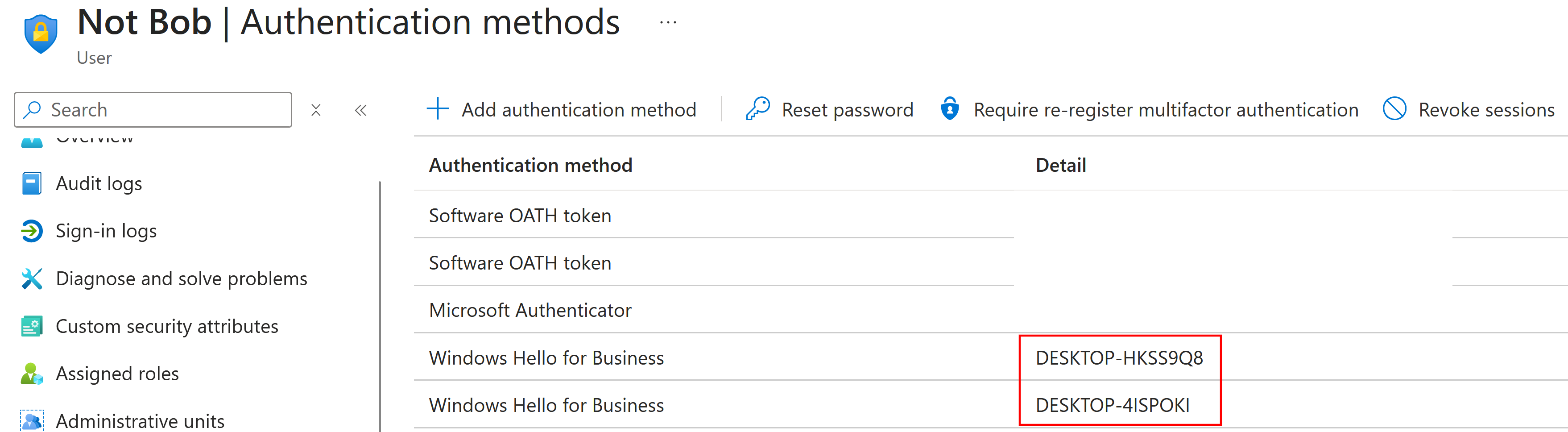
I originally assumed that the WHFB key from a specific device would only be usable on that same device to request a Primary Refresh Token. This turned out to be a wrong assumption, and I later found the reason for this: Remote Desktop. What happens if you connect over the Remote Desktop Protocol to a different Entra ID joined device? First, the device will use a certificate to authenticate your user to the other device to establish the network based authentication. Then, we could provide explicit credentials, similar to what happens when you use RDP in an Active Directory environment. This process changes if you are using WHFB, since we no longer have a password but want to use a key to authenticate. We could only use that key to authenticate to that other device, assuming it has a way of validating it, but that would leave us without any SSO information in that session, which means that when we open a browser we still need to specify some form of credentials. This is not ideal.
Instead, Microsoft made it possible to use WHFB over the RDP connection. The implementation is probably similar to how smart cards can be used over the RDP connection. What is interesting, is that this provides a need for our WHFB keys to be usable with different device identities. If I use RDP to connect from device A to device B, device B will request a PRT for SSO purposes, using the WHFB key from device A. So though the WHFB is hardware bound to device A, we can still use it “on” device B and device B will receive a PRT.
For us, this means that if we have access to a user session and a different device (either a real or a fake Entra ID registered/joined device), and we could interact with the WHFB key, we could potentially request a PRT and use that to authenticate as this user. The question is how we can actually interact with the WHFB key.
In our Def Con talk, Ceri covered various parts of the WHFB internals. We are only going to cover the case where the device does have a TPM, since that is the most common. On such devices, there are essentially 3 ways to use the WHFB key:
- Directly talking to the TPM, provided we have the right key blob.
- Using the Platform Key Storage Provider (KSP) NGC interface that talks to the TPM for us.
- Using the Passport Key Storage Provider, which talks to the Platform KSP.
Using the Platform KSP requires us to have PIN codes for different operations. These are not really related to the WHFB PIN that you use to unlock the session, but are intermediary PINs that are decrypted using the TPM, which in turn requires the users WHFB PIN. Most of this was originally researched by Benjamin Delpy and implemented in Mimikatz. There are ways to get these PINs but those will require at least SYSTEM rights.
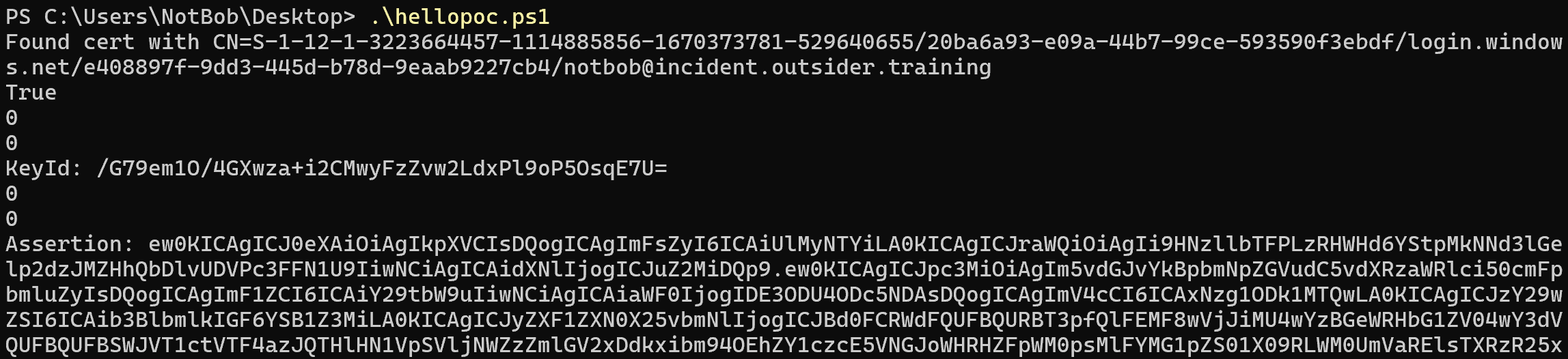
I was more interested in using the WHFB key from a low-privilege user, which is also what the RDP client does. This turns out to be possible through the Ncrypt.dll CNG interface and the Passport Key Storage provider. For reasons that are not entirely clear to me, calling these native functions from for example PowerShell does not prompt the user for a PIN or biometric authentication at all, but works based on cached data. The Microsoft Documentation mentions that this uses something called a ticket, what these are and how they work is something for a future research project. I’m definitely not an expert on dealing with native code, but eventually managed to cook up a PowerShell script that calls NCryptOpenKey to load the cryptographic key linked to the WHFB cert we find in the certificate store, which allows us to sign arbitrary data with the hardware bound key. The WHFB key is a user key, so we do not need Administrator rights to access it.
Since we can sign arbitrary data, we can also hash and sign the locally generated JWT that is needed to request a Primary Refresh Token based on this WHFB key. I do this with a PowerShell script on the victim host:
And then pass the resulting signed JWT (valid for 5 minutes) to my attacker host where I can request a PRT (valid for 90 days and renewable):

The only requirement here is that we have access to the victims session, for example via an implant or some piece of malware. Also, we will need to have an Entra joined or registered device. Registering or joining such a device would require credentials and usually MFA. Many years ago it was also possible to use a PRT from an existing device to create a new device identity, but that was fixed after I reported it to Microsoft and these days you need a token that is not device bound to register or join a new device in Entra ID. So we also assume that we have access to at least one other account that can perform this registration or join. We will work on eliminating this requirement in the next section.
The new technique: using WHFB for FIDO2 authentication
I already knew I could use my Windows Hello key as a FIDO2/passkey via the WebAuthn protocol, since this is something your browser offers when you sign in to Entra ID. I wanted to implement this in ROADtools, but could not find an existing library that implemented the protocol with purely an RSA key. Most existing libraries rightfully pass that to a real hardware device or implement the entire protocol. I also didn’t feel like writing my own WebAuthn library from scratch that does this. However, in the years that passed since my original research this problem has mostly been solved by LLMs, and for this part I simply asked Claude to write the minimalistic WebAuthn implementation for roadlib to support my WHFB research and a software based passkey implementation for roadtx. The only thing it couldn’t figure out is how to generated the user_handle value that is used to identify the user we authenticate. This value is normally supplied by the identity provider when you register a new FIDO2 key, but of course WHFB enrollment does not follow the WebAuthn registration protocol, and as such the value must be generated predictably somehow. This did take a bit of reversing (the human contribution to this part of the implementation), where it turned out this value is generated by concatinating the static string ON:, the tenant ID (in little-endian binary presentation) and a SHA256 hash of the user ID in the same binary-LE format. We can easily obtain these values from any access tokens issued to the user account, or query them from the tenant or the user’s endpoint, so this is not much of a hurdle.
WebAuthn works by signing a server-issued challenge. This challenge can be found in the configuration of the login page, and is a simple Entra ID signed JWT with a validity of 5 minutes, prefixed by O..
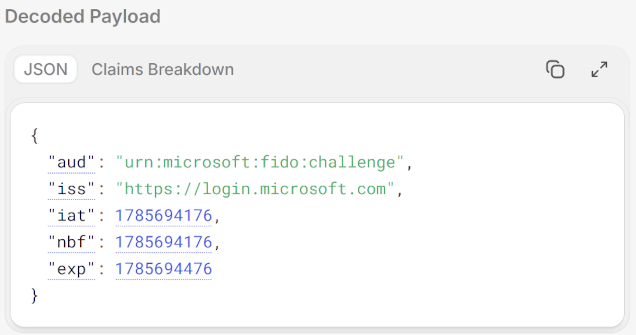
The challenge is not bound to a session, a user or even a tenant, so we can request it on our attacker host and then use the WHFB key on the victim machine to generate the complete WebAuthn assertion there (and use it for the next 5 minutes). I gave Claude the WHFB signing PowerShell script I painfully created and watched it one-shot a working WebAuthn PowerShell based implementation compatible with ROADtools.
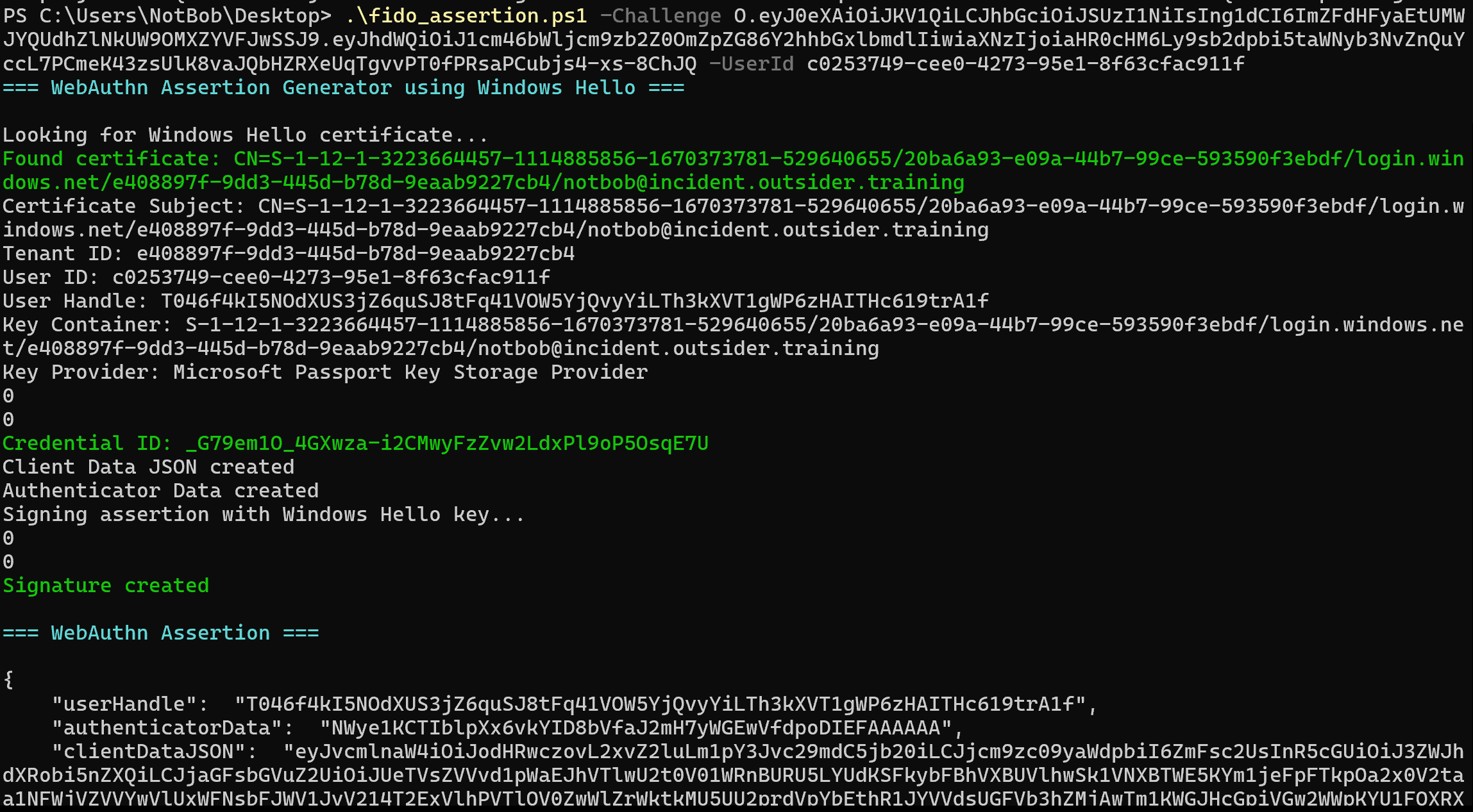
The signed WHFB based WebAuthn assertion can be passed to roadtx fidoauth to request tokens or to authenticate in the browser and browse the web as the victim user. This will also comply with Conditional Access policies requiring phishing resistant authentication. In this example, I use it to request a token, but we can also use it to browse the web authenticated as our victim user.

When I looked at the resulting tokens, I noticed that the device ID claim was not present. This makes sense since we did not pass any device state when signing in, in contrast to the PRT based flow where we used a fake device to sign the request payload:

While this would mean we run into policies that require a device state, for persistence purposes, this is actually very helpful. Tokens without a device ID claim can be used to register new devices, and then we can request a PRT. We can request a Microsoft Authentication broker refresh token, register a device with that, then use the broker refresh token to request a PRT with this device. This is a variant on the token upgrade I previously wrote about.
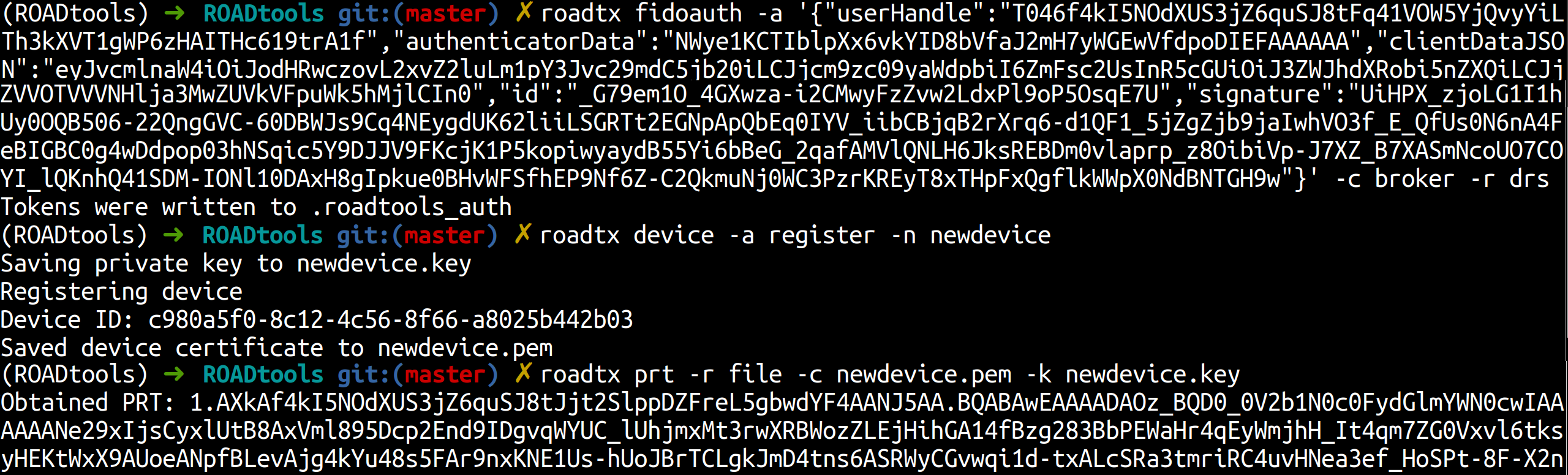
An alternative would be to register a device with the WebAuthn based token and then run the PowerShell script from the previous section to get the PRT assertion. Or you could probably even request a deviceless PRT and work with that. Endless possibilities! Of course if there are strict policies around device state an attacker would also have to deal with that, but that is also usually not impossible.
To sum up, from a compromised user session we can:
- Use their WHFB key without needing PIN/biometrics/other proof to sign in with WebAuthn anywhere.
- Request tokens to register a new (fake) device.
- Request a PRT once we have a device.
- Add other backdoor authentication material since using the WHFB key counts as performing fresh MFA, so we can add other passkeys or WHFB keys on our new device.
As Ceri pointed out in our Def Con talk, we can also access the metadata of WHFB based Passkeys registered on other websites and use those to authenticate, however these metadata files are owned by SYSTEM so this wouldn’t be fully possible from our low privilege point of view.
Defenses
If you want to detect when this happens, luckily there is a straightforward indicator when a WHFB key is used on a unmanaged device. While this can be done legitimately, for example by using WHFB in an incognito browser window or in a browser which does not support SSO, it shouldn’t be a super common occurrence. The KQL query below catches these odd sign-ins:
SigninLogs
| where AuthenticationDetails has '"authenticationMethod":"Windows Hello for Business"'
| where DeviceDetail.deviceId == ""
Unfortunately this does seem to catch quite a few benign operations as well. A more targeted query provided by Fabian Bader is supplied below, thanks to him and Sapir Federovsky for providing feedback:
SigninLogs
| where ResultType == 0
// Core detection logic
| where AuthenticationDetails has 'Windows Hello for Business'
| where isempty(DeviceDetail.deviceId)
// Filters some noise from B2B scenarios
| where CrossTenantAccessType == "none"
// Ignore anything where the AuthenticationDetails rely on previous information or a second step
| where array_length(todynamic(AuthenticationDetails)) == 1
// Ignore non-empty AuthContext as it also is an indicator for a non new session
| where array_length(todynamic(AuthenticationContextClassReferences)) == 0
Narrowing down the query further, for example by filtering on the device registration resource, would further reduce the false positives but also make the detection easier to bypass.
Generic monitoring around unexpected new (usually Windows) devices being added by users is also something worth considering, though of course users registering devices is also a perfectly legit operation in most environments.
Tools
The PowerShell scripts used in this blog are available in the ROADtools repository on GitHub in the winhello_assertion folder. The latest roadtx versions also support authenticating with WHFB keys as passkeys, either WHFB keys you store on disk, assertions you capture on other hosts, or software based passkeys you obtain. These software based passkeys can also be registered with roadtx registerpasskey, which allows you to register passkeys for your own account or on other accounts if you have the correct Entra ID role. This requires a token with the correct delegated rights on the Microsoft Graph, for example UserAuthenticationMethod.ReadWrite, which can be found on the Microsoft Authenticator app. When provisioning the passkey on your own account, the ngcmfa claim is also needed in the token, which can be requested with most roadtx token commands with --force-ngcmfa.
The registerpasskey command will not work if attestation is enforced since the script does not support this. In such cases using something like DSInternals.Passkeys would work with a real hardware FIDO2 key.